The shared screen
Every meeting room has a focal point — and for most organizations today, that focal point has become a large interactive display capable of touch input, wireless sharing, and real-time annotation. What that shift means for the people who select, install, and maintain those rooms is the subject of this guide. Whether you are outfitting a single huddle space or standardizing fifty conference rooms across a campus, the decisions behind the screen matter far more than the screen itself.
When the Room's Focal Point Became Interactive
For most of the twentieth century, the meeting table was the room. Participants gathered around it, documents were passed along it, and decisions were made above it. The whiteboard or projection screen at one end served as a secondary surface — useful, but peripheral. When large-format interactive displays replaced that projection screen as the dominant focal point, the geometry of collaboration changed. Attention consolidated at one wall, and that wall became something people could touch, annotate, and share content to from across the room or across the country.
The hardware shift, however, is only half the story. The more consequential change is what happens in the software and the meeting practice layered on top of the panel. A flat display that mirrors a laptop screen is a projector with a thinner profile. The rooms that actually change how teams work are the ones where the display becomes a live shared canvas — where collaborative software allows multiple participants to write, move, and build on the same surface simultaneously, regardless of whether they are in the room or joining remotely. The panel enables that possibility; the workflow decides whether it happens.
This distinction has practical consequences for procurement. Evaluating a display purely on resolution, brightness, and touch accuracy is necessary but insufficient. The questions that determine long-term value are organizational: Does the default launch experience match how your teams already start meetings? Does the platform work with the video conferencing and content tools your organization uses? Does the device require an account that every visitor needs to create, or can a guest walk in and contribute without friction? Answers to those questions predict usage far better than any hardware specification.
Matching Display Scale to the Space
Room size determines the display category, and each category carries different requirements that go beyond diagonal measurement. A huddle space seating two to four people operates at close range, which means touch sensitivity and latency matter more than sheer panel size. A display in the 55-to-65-inch range is typically sufficient, but the mounting position, cable routing, and the ability to stand at the screen without blocking sightlines to remote participants all shape whether the room functions smoothly in practice.
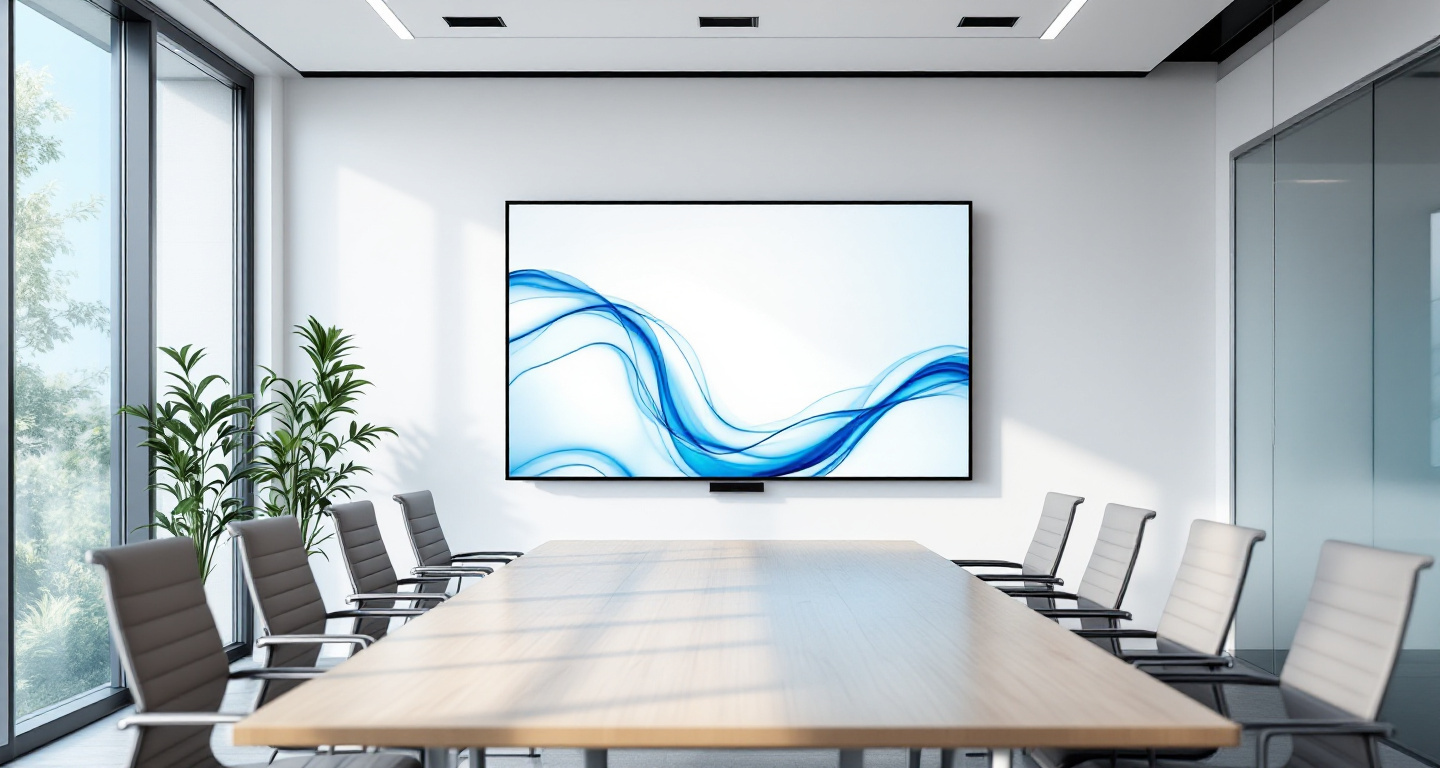
Mid-size conference rooms seating six to ten people sit in the most common procurement tier for corporate environments. These rooms need a display large enough that content is legible from the far end of the table — generally 75 to 86 inches — and the display must be able to serve dual duty: interactive whiteboarding mode for working sessions and presentation mode for video calls where a remote audience needs to see shared content clearly. The room's lighting conditions and ambient glare from windows significantly affect the effective brightness floor for this category.
Boardrooms and large training rooms introduce a different set of constraints. A boardroom may seat twenty or more, with sightlines extending fifteen or more feet from the display. A single panel often cannot serve that depth adequately, and dual-display configurations — or a primary interactive display combined with secondary confidence monitors — become practical rather than extravagant. Training rooms face a related challenge: the audience is often larger and more distributed within the space, and the display needs to function as a teaching surface, a reference screen, and sometimes a dual-zone split between instructor content and participant view simultaneously.
The Adoption Problem: Boards Nobody Touches
Interactive displays have a well-documented failure mode: the device ships, gets installed, receives a brief demonstration from a vendor technician, and then sits in the room performing as an expensive flat-panel monitor for the next three years. The touch functionality goes unused. The whiteboard application never gets opened. The wireless sharing protocol requires a download that no one gets around to completing. This outcome is common enough that it should be treated as the default trajectory if adoption is not addressed deliberately.
The root cause is almost never reluctance. Most employees are willing to use a new tool if the tool is easier than what they already do. The problem is that interactive displays, out of the box, frequently are not easier. They require a mode change — switching away from the familiar pattern of plugging in a laptop and projecting — and that mode change needs to feel like a gain, not a detour. Training that focuses on feature depth misses the point. What changes usage rates is a single, reliable, one-button or one-tap path to the most common task in that room, whether that is starting a video call, opening a shared whiteboard, or mirroring a laptop wirelessly.
Default-on simplicity is a configuration decision, not a hardware feature. It means auditing what the device shows when someone walks in and wakes the screen, and engineering that experience so it presents the one or two actions that cover the majority of meetings in that room. Rooms that have been configured this way see sustained use. Rooms that boot to a home screen with twelve application icons and a settings menu do not. The week-two drop-off is almost always a sign that the default experience was never designed for the actual user walking through the door.
Running a Fleet: The Operational Layer Most Teams Underestimate
A single interactive display in a single conference room is a procurement decision. Twenty interactive displays across multiple floors or locations is an infrastructure decision, and it requires a different operational model. Scheduling integration is the first layer: displays that cannot surface room availability at a glance, or that cannot be booked through the same system employees use for every other resource, create friction that drives people back to booking rooms by walking the floor. Calendar and room-booking integration should be a requirement at procurement, not an afterthought addressed post-installation.
Firmware and software updates represent a sustained maintenance obligation that is easy to underestimate in the first year and becomes a real burden by year three. Displays that cannot be updated remotely, or that require a technician visit to apply patches, scale poorly across a fleet. Establishing a maintenance cycle — regular update windows, a documented rollback procedure, and a test unit that receives updates before the fleet — prevents the scenario where a critical security patch breaks a room configuration across every location simultaneously.
Cable and dongle decay is unglamorous but consequential. The physical connection points on interactive displays — HDMI inputs, USB-A ports, power adapters for wireless dongles — experience mechanical wear that solid-state components do not. A fleet management program that includes periodic physical inspection, a spare-parts inventory for the most failure-prone components, and a daily check habit by facilities staff catches these failures before they become a support ticket on the morning of a client presentation. The daily check does not need to be elaborate: wake the screen, verify the primary use-case path works, note anything that requires attention. That discipline, applied consistently, is the operational foundation that keeps a display fleet usable rather than merely installed.
- Interactive whiteboards: from marker trays to touch surfaces
Projector boards vs flat-panel touch displays, writing latency, mounting and sightlines, and the rescue plan for an unused board.
- Glass boards and see-through displays: writing on light
Dry-erase glass walls, lightboard studios for video teaching, and interactive glass display systems — production, glare, and cleaning realities.
- Huddle rooms and small spaces: the screens closest to the work
Screen sizing for 2-6 person rooms, the fifteen-second simplicity bar, acoustics, and running many small rooms as a fleet.
- Boardrooms and large-format displays: presence at scale
Far-seat legibility, one panel vs two vs LED wall, the studio realities of hybrid boardrooms, and governing the flagship room.
- Live boards: when the canvas is shared across rooms
Real-time synced ink across rooms — latency budgets, facilitation across locations, and when a camera on a dry-erase board serves better.
- Video walls in large meeting and collaboration spaces
Bezels, uniformity, viewing distance, content scaling, and heat — what large-format multi-panel walls demand in briefing rooms.